
A fast website is no longer just about making a page load quickly. Visitors expect websites to load smoothly, respond quickly to their actions, and remain visually stable while they browse.
This is where Core Web Vitals become important.
For WordPress websites, issues such as large images, excessive plugins, slow hosting, render-blocking CSS and JavaScript, third-party scripts, and poorly optimised themes can negatively affect performance.
In this guide, we’ll explain what Core Web Vitals are and, more importantly, how to improve Core Web Vitals in WordPress using practical optimisation techniques.
What Are Core Web Vitals?
Core Web Vitals are a set of metrics used to evaluate important aspects of a webpage’s user experience.
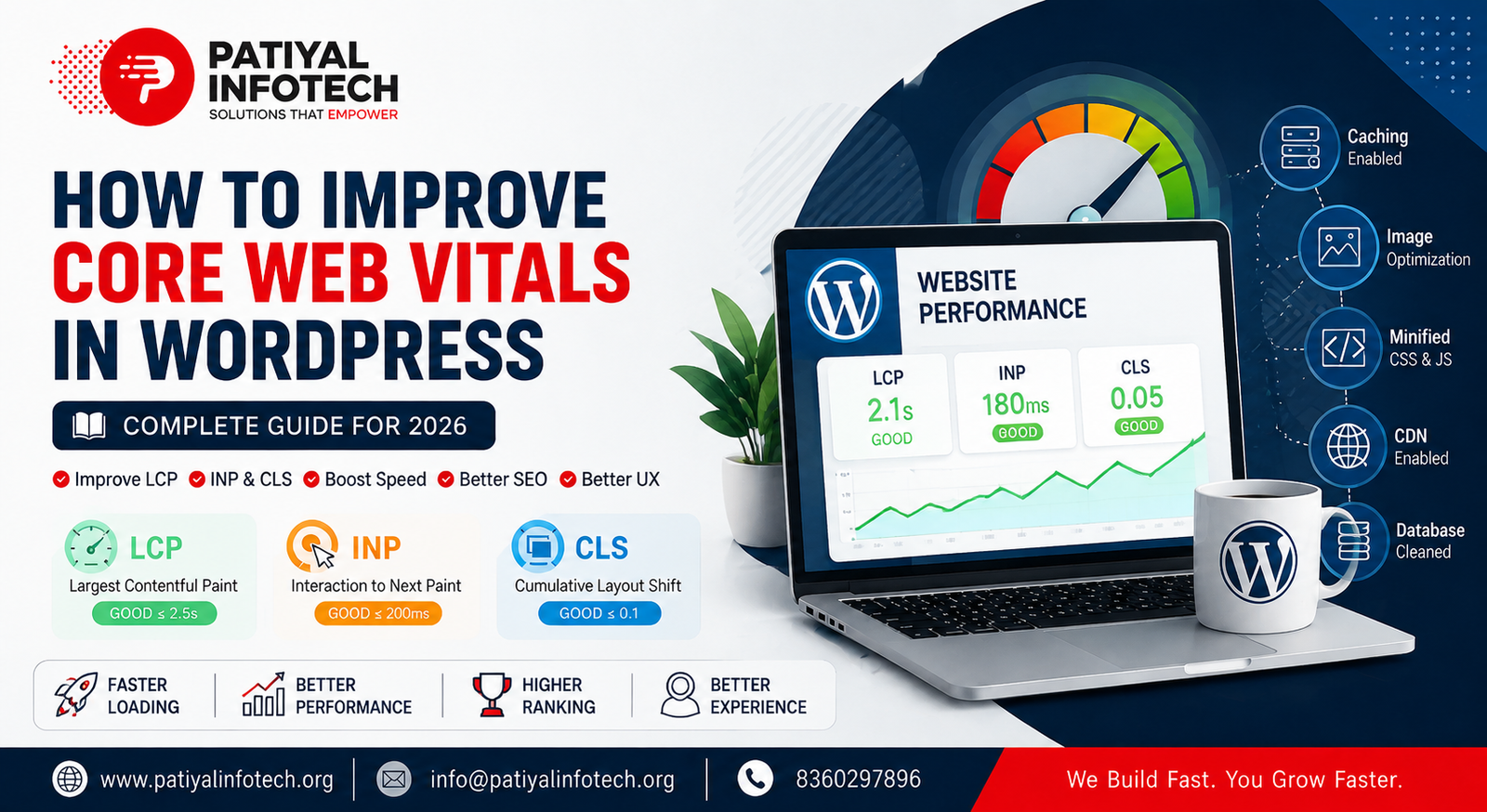
The three current Core Web Vitals are:
- LCP (Largest Contentful Paint) – measures loading performance.
- INP (Interaction to Next Paint) – measures how quickly a page responds to user interactions.
- CLS (Cumulative Layout Shift) – measures visual stability.
Google recommends achieving good Core Web Vitals as part of providing a strong page experience, although website performance involves more than Core Web Vitals alone. (Google for Developers)
Core Web Vitals targets
| Metric | What it measures | Good |
| LCP | Loading performance | ≤ 2.5 seconds |
| INP | Interaction responsiveness | ≤ 200 ms |
| CLS | Visual stability | ≤ 0.1 |
These measurements help identify whether visitors are experiencing a fast, responsive, and stable website.
1. Test Your WordPress Website First
Before making changes, measure your website’s current performance.
A useful starting point is Google PageSpeed Insights, which provides performance information and optimization recommendations for individual pages.
You can also check Core Web Vitals data through Google Search Console when sufficient real-user data is available.
Don’t focus only on the homepage. Test important pages such as:
- Homepage
- Service pages
- Product pages
- Blog posts
- Contact page
- Landing pages
- High-traffic pages
A website may perform well on the homepage while individual blog posts or landing pages have serious performance problems.
2. Improve LCP in WordPress
Largest Contentful Paint (LCP) measures how quickly the largest visible content element becomes available.
This is commonly a:
- Hero image
- Large heading
- Featured image
- Banner
- Video poster
- Large text block
For a good LCP score, the main content should appear quickly.
Optimize your hero images
Large hero images are one of the most common causes of poor LCP.
Instead of uploading a 3–5 MB image directly from a camera or design software, optimize it before uploading.
Consider:
- Correct image dimensions
- WebP or other modern formats where appropriate
- Image compression
- Responsive image sizes
- Avoiding unnecessarily large images
WordPress itself recommends optimizing image files and considering modern formats such as WebP. (WordPress Developer Resources)
Don’t lazy-load the LCP image
Lazy loading is useful for images that appear further down the page, but the main above-the-fold image generally needs to load as early as possible.
WordPress includes loading optimization functionality that can apply attributes such as loading, fetchpriority, and decoding where appropriate. (WordPress Developer Resources)
The goal is not simply to lazy-load every image. The goal is to load the right resources at the right time.
3. Reduce Render-Blocking CSS and JavaScript
CSS and JavaScript can delay the browser from displaying important content.
A WordPress website may load:
- Theme CSS
- Plugin CSS
- Elementor/Divi CSS
- JavaScript libraries
- Tracking scripts
- Chat widgets
- Analytics
- Social media scripts
When too many resources are loaded before the main content can render, performance can suffer.
What you can do
Depending on your website, consider:
- Removing unused CSS
- Delaying non-critical JavaScript
- Deferring scripts where appropriate
- Minifying CSS and JavaScript
- Loading only required assets
- Removing unnecessary plugin files
- Reducing third-party scripts
However, optimization settings should be tested carefully. Aggressive CSS or JavaScript optimization can sometimes break menus, sliders, forms, animations, or other functionality.
4. Improve INP by Reducing JavaScript
INP (Interaction to Next Paint) measures how responsive your website is when visitors interact with it.
For example, a visitor may:
- Click a menu
- Open a popup
- Submit a form
- Use a filter
- Click a button
- Interact with a slider
If the browser is busy processing large amounts of JavaScript, the interaction can feel delayed.
Common WordPress causes of poor INP
- Too many plugins
- Heavy page builders
- Large JavaScript files
- Unnecessary third-party scripts
- Complex animations
- Excessive DOM elements
- Poorly optimized themes
- Multiple tracking scripts
How to improve INP
Start by identifying unnecessary JavaScript.
Remove plugins and scripts that aren’t providing real value. WordPress’s own performance documentation notes that plugins and themes can have a significant impact on performance and recommends removing unnecessary plugins. (WordPress Developer Resources)
You can also:
- Delay non-essential scripts
- Reduce third-party scripts
- Simplify animations
- Avoid unnecessary popups
- Reduce excessive page-builder elements
- Optimize plugin functionality
The objective isn’t to remove every JavaScript file. It’s to make sure the browser isn’t overloaded with unnecessary work.
5. Fix Cumulative Layout Shift (CLS)
Have you ever tried clicking a button and suddenly the page moves?
That’s a layout shift.
CLS (Cumulative Layout Shift) measures unexpected movement of content while a page loads.
Common examples include:
- Images appearing without reserved space
- Advertisements pushing content downward
- Fonts changing the layout
- Late-loading banners
- Popups affecting page structure
- Dynamically injected content
How to reduce CLS
Always reserve appropriate space for images and other dynamic content.
For example, images should have known dimensions so the browser can allocate the required space before the image finishes loading.
Also check:
- Fonts
- Banners
- Ads
- Embedded content
- Iframes
- Popups
- Cookie notices
A stable page makes the website feel much more polished and professional.
6. Use a Proper Caching System
Caching is one of the most effective ways to improve WordPress performance.
Instead of generating every page from scratch for every visitor, caching can allow WordPress to serve previously generated content more efficiently.
WordPress’s official performance documentation specifically highlights caching as a high-impact performance optimization. (WordPress Developer Resources)
Depending on your hosting environment, you may use:
- Page caching
- Browser caching
- Object caching
- Server-side caching
- CDN/edge caching
The correct configuration depends on your hosting provider and website.
Important: Don’t install multiple caching plugins and enable every optimization option blindly. Two systems trying to perform the same optimization can create conflicts.
7. Optimize Your Images
Images can have a huge impact on WordPress performance.
Before uploading an image, ask:
Does this image really need to be this large?
For example, if an image is displayed at approximately 800px wide, there is usually little benefit in uploading a 4000px-wide version.
Image optimization checklist
- Resize oversized images
- Compress images
- Use modern formats where appropriate
- Use responsive image sizes
- Lazy-load below-the-fold images
- Avoid unnecessary background images
- Optimize thumbnails
- Remove unused media where appropriate
Image optimization can reduce page weight while maintaining acceptable visual quality.
8. Use a CDN
A Content Delivery Network (CDN) can serve static resources from locations closer to visitors.
This can be especially useful when your visitors are geographically distributed.
A CDN can help deliver:
- Images
- CSS
- JavaScript
- Fonts
- Other static assets
WordPress recommends considering CDNs as a way to reduce server load and improve delivery of static resources. (WordPress Developer Resources)
However, a CDN isn’t a magic solution. If your website has inefficient code, huge images, or a slow database, those underlying issues still need to be addressed.
9. Choose Good WordPress Hosting
Your hosting environment can have a major impact on website performance.
A beautifully optimized WordPress website can still be slow if the server is overloaded or poorly configured.
WordPress identifies hosting, server load, hardware resources, software versions, and geographical distance as factors that can affect performance. (WordPress Developer Resources)
Look for hosting that provides:
- Adequate CPU and RAM
- SSD/NVMe storage
- Modern PHP
- Server-side caching
- Reliable database performance
- CDN integration
- Good resource limits
- Consistent uptime
If your website regularly reaches CPU, memory, PHP worker, or other hosting limits, optimization alone may not solve the problem.
10. Keep WordPress, Themes and Plugins Updated
Keeping WordPress, themes, and plugins updated is important for both security and performance.
Updates can include:
- Security fixes
- Bug fixes
- Compatibility improvements
- Performance improvements
- PHP compatibility updates
However, don’t update everything directly on a production website without testing.
A safer process is:
- Create a backup.
- Update plugins/themes.
- Clear cache.
- Test important pages.
- Check forms and menus.
- Check mobile responsiveness.
- Test major functionality.
- Monitor the website after deployment.
This is particularly important for websites using page builders such as Elementor, Divi, or other heavily customized themes.
11. Remove Unnecessary Plugins
More plugins don’t automatically mean a slow website, but unnecessary or poorly coded plugins can add extra database queries, CSS, JavaScript, API requests, or background processes.
Review your plugin list regularly.
Ask:
Is this plugin actually necessary?
If you have three plugins performing overlapping functions, consider whether you can safely consolidate them.
WordPress specifically recommends deactivating and deleting unnecessary plugins when optimizing performance. (WordPress Developer Resources)
12. Optimise Your WordPress Database
Over time, WordPress databases can accumulate unnecessary data such as:
- Post revisions
- Transients
- Spam comments
- Deleted content
- Plugin-generated data
- Unused metadata
Database optimisation can help, especially on larger or older websites.
You should be careful, though. Don’t delete database tables or options simply because they appear unfamiliar.
Always create a backup before performing database cleanup.
13. Check Autoloaded Options
WordPress loads certain options automatically on every request.
If plugins or themes add excessive amounts of autoloaded data, it can contribute to performance problems.
WordPress’s documentation specifically identifies autoloaded options as a performance consideration and recommends keeping the total under roughly 800 KB as a general target. (WordPress Developer Resources)
This is more of an advanced optimization, so it should be handled carefully.
Don’t simply delete autoloaded options without understanding which plugin or theme created them.
14. Reduce Third-Party Scripts
Third-party services are often overlooked when optimising Core Web Vitals.
Examples include:
- Google Analytics
- Advertising scripts
- Facebook/Meta tracking
- Chat widgets
- Social media embeds
- Heatmap tools
- Marketing platforms
- External fonts
- Video embeds
Every external service can introduce additional network requests and browser processing.
Review all third-party scripts and ask:
Is this service essential to the website?
If not, consider removing it.
If it is necessary, load it in a way that minimises its impact on the initial page experience.
15. Be Careful With Page Builders
Page builders make WordPress website development easier, but complex pages can sometimes contain a large number of elements and assets.
For example, a single page might contain:
- Multiple sections
- Nested containers
- Sliders
- Animations
- Popups
- Background videos
- Multiple widgets
- Custom CSS
- Third-party modules
You don’t necessarily need to stop using Elementor, Divi, or another page builder.
Instead, build pages efficiently.
Use fewer unnecessary elements and avoid adding animations or widgets simply because they are available.
16. Optimise Fonts
Fonts can also affect loading performance and visual stability.
Consider:
- Using fewer font families
- Limiting font weights
- Hosting fonts efficiently
- Preloading only critical fonts when appropriate
- Avoiding unnecessary font variations
Too many font files can increase requests and page weight.
Font loading should also be configured carefully to reduce visible layout changes.
17. Don’t Chase a Perfect PageSpeed Score
This is an important point.
A 100 score in PageSpeed Insights is not the ultimate goal.
The goal is to create a website that:
- Loads quickly
- Responds quickly
- Remains visually stable
- Works well on mobile
- Provides a good user experience
- Performs reliably for real visitors
Google also makes clear that page experience involves more than Core Web Vitals alone. (Google for Developers)
A website can have a high laboratory score but still have real-world performance problems.
Focus on real users and meaningful improvements, not just a number.
18. Test After Every Major Optimisation
Performance optimisation should be an iterative process.
Don’t make 20 changes at once and then try to determine which change helped or caused a problem.
A better approach is:
Measure → Optimize → Test → Measure again
After making changes, check:
- Homepage
- Important landing pages
- Blog posts
- Contact forms
- Navigation
- Mobile layout
- Images
- Animations
- Popups
- Checkout, if applicable
Then run another performance test.
Core Web Vitals WordPress Checklist
Before considering your optimisation work complete, review this checklist:
- Test important pages with PageSpeed Insights
- Check LCP
- Check INP
- Check CLS
- Optimise hero/LCP images
- Compress and resize images
- Enable appropriate caching
- Optimize CSS
- Optimize JavaScript
- Remove unnecessary plugins
- Reduce third-party scripts
- Review fonts
- Check hosting performance
- Consider a CDN
- Clean unnecessary database data
- Review autoloaded options
- Update WordPress and plugins safely
- Test desktop and mobile
- Re-test after optimization
Frequently Asked Questions
Yes, Core Web Vitals are an important part of Google’s broader page-experience guidance. However, they are not the only factor involved in search performance. High-quality, useful content and other SEO fundamentals remain important. (Google for Developers)
There isn’t one metric that should be optimized while ignoring the others.
LCP focuses on loading performance, INP focuses on responsiveness, and CLS focuses on visual stability. A good WordPress website should work toward healthy results across all three.
Start with technical improvements such as:
- Image optimization
- Caching
- CSS/JavaScript optimization
- Plugin cleanup
- CDN configuration
- Font optimization
- Third-party script optimisation
These changes can often improve performance without redesigning the website.
Caching is helpful, but it doesn’t fix every performance problem.
Your website could still be affected by:
- Large images
- Poor hosting
- Heavy plugins
- Excessive JavaScript
- Third-party scripts
- Database issues
- Poorly optimized themes
- Large page-builder pages
WordPress performance generally requires looking at the entire stack rather than relying on a single plugin. (WordPress Developer Resources)
Final Thoughts
Improving Core Web Vitals in WordPress isn’t about installing one optimization plugin and expecting an instant perfect score.
It requires a combination of good hosting, optimized images, caching, efficient themes and plugins, optimized CSS and JavaScript, controlled third-party scripts, and regular performance testing.
Start by measuring your website, identify the biggest bottleneck, fix it, and test again.
Most importantly, optimize for real visitors—not just a PageSpeed score.
If you consistently monitor performance and keep your WordPress installation clean and optimized, you can create a faster, more stable, and more enjoyable website experience.