
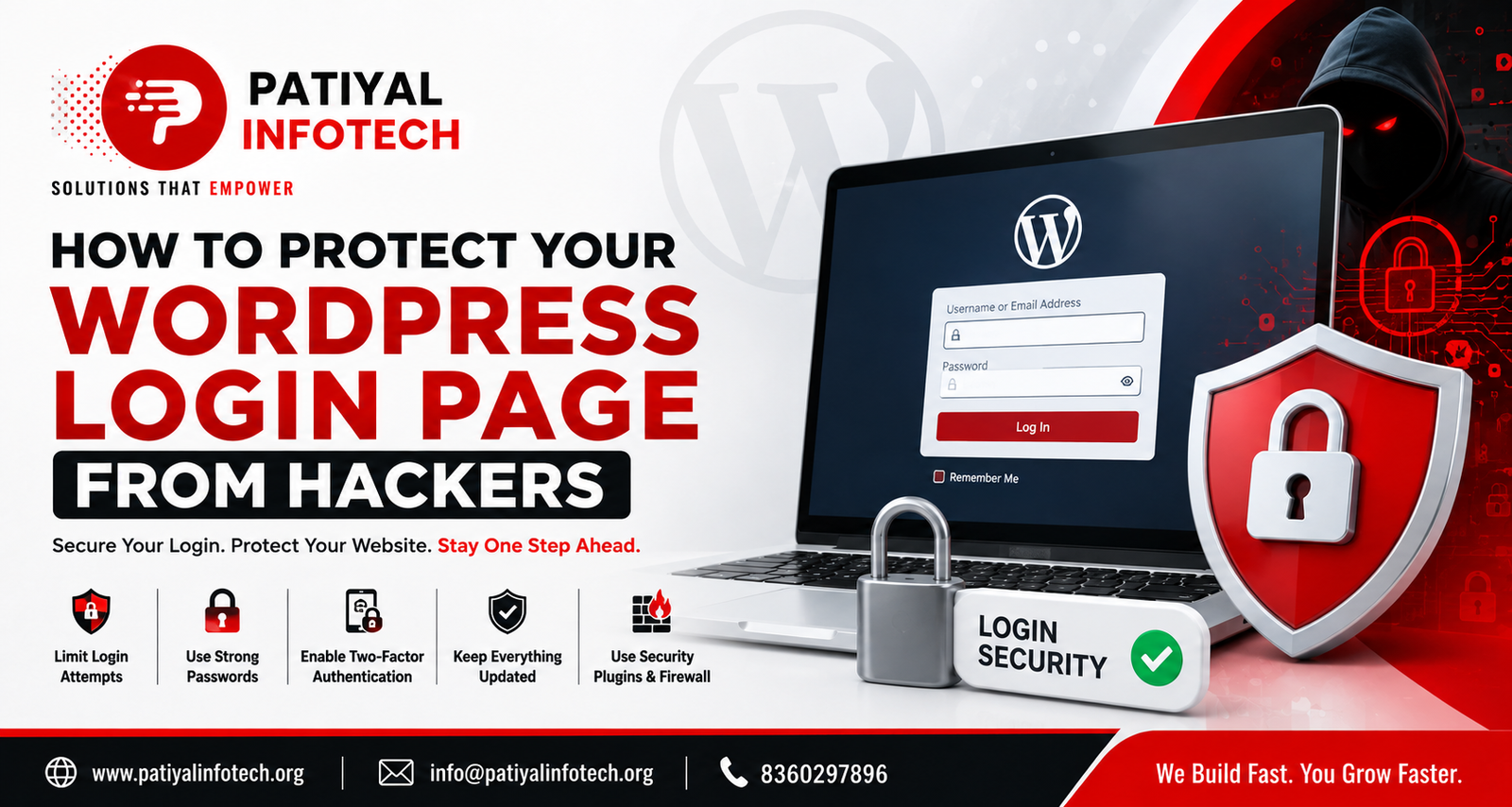
Your WordPress login page is one of the most common targets for automated attacks. Hackers and bots can repeatedly attempt usernames and passwords, exploit outdated software, or abuse weak authentication practices to gain unauthorized access.
The good news is that you can significantly improve your WordPress login security by following a few practical steps.
In this guide, you’ll learn how to protect your WordPress login page from hackers, reduce brute-force attacks, secure administrator accounts, and add additional layers of protection to your website.
Why Is the WordPress Login Page a Target?
The standard WordPress login page is usually available at:
yourwebsite.com/wp-login.php
The /wp-admin/ address also takes logged-out users to the login screen.
Because WordPress is widely used, automated bots routinely scan websites for login pages and attempt common usernames and stolen or guessed passwords. Brute-force attacks are one of the basic ways attackers try to break into a website. (WordPress Developer Resources)
If an attacker successfully gains administrator access, the consequences can be serious. They may be able to modify website content, install malicious plugins, change settings, create unauthorized users, or upload malicious code.
That is why protecting your WordPress login page should be an important part of your overall website security strategy.
1. Use a Strong and Unique Password
One of the simplest ways to improve WordPress login security is to use a strong, unique password.
Avoid passwords based on:
- Your name
- Company name
- Website name
- Phone number
- Birthday
- Common dictionary words
- Simple combinations such as admin123
Instead, use a long, unique password that you don’t reuse on other websites.
A password manager can also help you generate and store strong passwords securely.
WordPress itself recommends strong passwords because administrator account compromise can give an attacker access to important parts of the website. (WordPress Developer Resources)
Tip
Never reuse your WordPress administrator password for your email, hosting account, domain account, or other services.
If one service is compromised, reused credentials could put your other accounts at risk.
2. Enable Two-Factor Authentication
A strong password is important, but it shouldn’t be your only protection.
Two-factor authentication (2FA) adds another verification step when someone attempts to log in.
For example:
Password → Verification Code → Login
Even if someone discovers your password, they may still be unable to access the account without the second authentication factor.
Current WordPress security guidance recommends enabling 2FA for administrator accounts. (WordPress Developer Resources)
You can implement 2FA using a reputable WordPress security plugin or an identity provider that supports it.
Why 2FA matters
Imagine someone obtains your password through a phishing attack or a leaked password database.
Without 2FA:
Password = Potential access
With 2FA:
Password + Second factor = Access
This provides an additional layer of protection.
3. Limit Login Attempts
A brute-force attack involves repeatedly trying different username and password combinations until one works.
If your website allows unlimited login attempts, attackers can keep trying.
Login rate limiting can help by restricting repeated failed attempts.
For example, you could configure your security system to temporarily block or slow down repeated failed login attempts from the same source.
WordPress’s current security documentation recommends rate limiting at the WAF, server, or application level depending on your setup. (WordPress Developer Resources)
There are WordPress plugins available specifically for login protection and rate limiting. For example, Limit Login Attempts Reloaded is available through the official WordPress plugin directory. (WordPress)
However, don’t simply install multiple security plugins that perform the same function. Choose a suitable security solution and configure it properly.
4. Add CAPTCHA to Your Login Page
CAPTCHA can help distinguish normal users from automated bots.
If bots are repeatedly attempting to access your WordPress login page, adding a CAPTCHA or a modern alternative such as an anti-bot challenge can make automated attacks more difficult.
Current WordPress guidance lists CAPTCHA/Turnstile-type protection as one possible defense against automated login attacks. (WordPress Developer Resources)
However, CAPTCHA should be considered one layer of security, not your entire security strategy.
5. Always Use HTTPS
Your WordPress login should be accessed over HTTPS.
For example:
https://example.com/wp-login.php
rather than:
http://example.com/wp-login.php
HTTPS encrypts communication between the visitor’s browser and the website.
WordPress specifically recommends secure HTTPS connections for login and authentication because non-secure connections can expose credentials to interception. (WordPress Developer Resources)
Make sure your SSL certificate is active and that your website consistently redirects HTTP traffic to HTTPS.
6. Keep WordPress, Plugins, and Themes Updated
An outdated WordPress installation, plugin, or theme can contain known security vulnerabilities.
This is one of the most important areas of WordPress security.
WordPress recommends keeping the core software, plugins, and themes updated and using software from trusted sources. (WordPress Developer Resources)
For example:
Old plugin → Known vulnerability → Possible attack
Keeping software updated helps reduce the risk.
Don’t forget unused plugins
If you have a plugin that you no longer use, don’t simply leave it installed.
Remove plugins and themes that are unnecessary, especially if they are no longer maintained.
7. Avoid the Default “Admin” Username
Using an easily guessed administrator username can make automated attacks easier.
For example:
admin
is an obvious username to test.
WordPress’s hardening guidance recommends avoiding easily guessed administrative usernames. (WordPress Developer Resources)
Instead, use a unique administrator username that doesn’t reveal your role or company name.
Important
Don’t make unnecessary database changes just to rename an existing administrator account unless you know exactly what you’re doing.
For a live website, take a backup first and use a safe WordPress-supported approach.
8. Use a WordPress Security Plugin or WAF
A reputable security plugin can provide several security features from one place.
Depending on the solution, this may include:
- Login protection
- 2FA
- Malware scanning
- Firewall protection
- IP blocking
- Security alerts
- Login monitoring
- Rate limiting
You can also use a Web Application Firewall (WAF) at the server, hosting, or CDN level.
A WAF can block malicious traffic before it reaches your WordPress application. WordPress’s security documentation notes that server-level and edge/WAF protections can be useful against brute-force attacks. (WordPress Developer Resources)
9. Protect or Disable XML-RPC When Appropriate
WordPress includes an XML-RPC interface that can be used by certain integrations and applications.
However, xmlrpc.php can also be targeted in automated attacks.
If your website does not require XML-RPC, you can consider disabling it. If you need it, appropriate restrictions and rate limiting can help reduce abuse.
WordPress’s current brute-force guidance specifically recommends considering XML-RPC protection and avoiding unnecessary exposure. (WordPress Developer Resources)
Don’t disable XML-RPC blindly if your website depends on a service that requires it.
10. Give Users Only the Access They Need
Not every person working on your website needs administrator access.
WordPress provides different user roles and capabilities.
For example:
- Administrator
- Editor
- Author
- Contributor
- Subscriber
Give each person the minimum level of access required for their work.
For example, if someone only needs to publish blog posts, they may not need administrator privileges.
This reduces the potential impact if an account is compromised.
11. Protect Your Hosting and Email Accounts Too
WordPress login security doesn’t stop at wp-login.php.
Your:
- Hosting account
- Domain account
- Business email
- FTP/SFTP account
- Database
- WordPress administrator account
should all have strong, unique credentials and appropriate security controls.
There is little benefit in heavily securing WordPress if an attacker can simply compromise your hosting account and access the website directly.
12. Take Regular Backups
Security isn’t only about preventing attacks.
You should also prepare for the possibility that something goes wrong.
Maintain regular backups of:
- WordPress files
- Database
- Uploads
- Important configuration
Ideally, keep backups in a location separate from your live website.
WordPress recommends maintaining reliable backups as part of a broader security strategy so you can recover after a compromise or other failure. (WordPress Developer Resources)
Remember
A backup is only useful if you can actually restore it.
Test your backups periodically.
13. Monitor Login Activity
Monitoring can help you identify suspicious activity.
Depending on your security setup, you may be able to monitor:
- Failed login attempts
- Successful administrator logins
- New user creation
- Password changes
- Plugin installations
- Theme changes
- Other important administrative activity
Logs can also help investigate what happened if your website is compromised. WordPress’s security guidance recommends logging and monitoring as part of security management. (WordPress Developer Resources)
WordPress Login Security Checklist
Before finishing, use this quick checklist:
| Security Measure | Recommended |
| Strong unique password | ✅ |
| Two-factor authentication | ✅ |
| Login rate limiting | ✅ |
| CAPTCHA/anti-bot protection | ✅ |
| HTTPS/SSL | ✅ |
| Updated WordPress | ✅ |
| Updated plugins and themes | ✅ |
| Remove unused plugins | ✅ |
| Avoid predictable admin usernames | ✅ |
| Security plugin/WAF | ✅ |
| Review XML-RPC requirements | ✅ |
| Limited user permissions | ✅ |
| Regular backups | ✅ |
| Login/activity monitoring | ✅ |
What If Your WordPress Website Has Already Been Hacked?
If you suspect that someone has already accessed your WordPress website, don’t simply change the login password and assume everything is fixed.
You should consider:
- Changing administrator passwords.
- Reviewing all WordPress users.
- Checking for unfamiliar administrator accounts.
- Updating WordPress, plugins, and themes.
- Scanning the website for malware.
- Reviewing recent changes and login activity.
- Checking hosting and FTP/SFTP accounts.
- Restoring from a known-clean backup if necessary.
- Reviewing the website after cleanup.
If the compromise is serious, consider getting professional security assistance rather than repeatedly trying random fixes.
Final Thoughts
Your WordPress login page is an important entry point to your website, so protecting it should be part of your overall security strategy.
You don’t need to implement every advanced security technique at once. Start with the fundamentals: use strong unique passwords, enable 2FA, limit login attempts, use HTTPS, keep WordPress updated, remove unnecessary software, maintain backups, and monitor suspicious activity.
For a broader security strategy, you can also read our guide on [How to Secure Your WordPress Website in 2026] and use it as the next step after securing your login page.
A layered approach is much stronger than relying on a single security plugin or setting.
Frequently Asked Questions
Use a strong unique password, enable 2FA, limit login attempts, add CAPTCHA or other anti-bot protection, use HTTPS, keep WordPress updated, and consider a reputable security plugin or WAF.
Yes. Attackers can attempt brute-force attacks and exploit compromised credentials. Strong authentication and rate limiting can significantly reduce this risk. (WordPress Developer Resources)
Changing the login URL can reduce exposure to some automated scans, but it should not be considered your primary security measure. Strong authentication, rate limiting, updates, and WAF protection are more important.
It is strongly recommended. WordPress’s current security guidance recommends 2FA for administrator accounts as an additional layer beyond passwords. (WordPress Developer Resources)
Only if your website doesn’t need it. If a service or integration depends on XML-RPC, consider protecting and rate-limiting it instead of blindly disabling it. (WordPress Developer Resources)
The frequency depends on how often your website changes. A site publishing frequently should generally have more frequent backups than a mostly static website. Most importantly, keep reliable backups and periodically verify that they can be restored.